So you want to learn Java, eh?
What drove you to this? Seriously. Is someone pointing a gun to your head? Okay, fine. You have been warned.
This is my tutorial for stupids. And I mean stupid. Stupid∞. People with zero -zilch programming experience. Just the crowd Computer Programming 1 was aimed at. The reason I'm writing this is the fact that I have no better way to contribute to society (I'm not spending hours talking to my girlfriend or saving people from hurricanes like the other members of the Lardbucket Circle.) and the inadequacy of the class. That class was too bewildering for the beginner programmers and too slow for the experienced programmers. I, a beginner programmer, still have gaping holes in my knowledge, but I'm better off than most of the people in that class. If necessary, Andy will drop in a helpful hint or clarification (though he doesn’t know Java) in a different color text. Like this.
First, some background knowledge. Java was developed by Sun Microsystems and is really, really slow and it sucks up a lot of RAM, so get your best computer to program on. For this reason, Java is held in general disdain by the programming community. Plus, you have to install stuff just to run it. Not just to write it but to run something that someone else wrote. Yeah, sucks. But it’s the language the AP test is on and this can be a gateway to other languages for you. (PHP became much easier for me to learn after Java.)
This tutorial will cover only the creation of Java applications (stand-alone programs). If you want applets (Java programs in web pages), take Web Programming.
I will be covering the following:
The first thing you need is a SDK (software development kit). They’re available at the Sun website. You need the SDK for Java 2 Standard Edition (J2SE). Look for “J2SE v 1.4.2_12 SDK”. That seems to work for me.
Note: You know, for a company named Sun Microsystems, their SDK is freakin' huge.
I’m not sure what the SDK does (it packages together a java compiler, and lots of libraries with the code that's not in the normal java distribution, but that you need to write programs), but I think it holds a lot of the prewritten library classes you’ll use ( Math, Random, JOptionPane…we’ll get to those later). Just install it anywhere on the hard drive and forget about it. IDEs seem to find it automatically. You know how to install things, just hit “Next” repeatedly.
You also need an Integrated Development Environment. According to Andy, it combines a bunch of stuff that’s really useful (compiler, debugger, etc) packaged together. I recommend Eclipse SDK 3.2. It’s the one we’ll be using that I’ll be teaching you with, so just download it.
Surprise!! It’s not an installing executable. It’s a zip file. If you’re lucky, Windows will offer to unzip it for you. If not, get WinRAR. It unzips everything Winzip does and a crapload more. It looks like a trial period clock is ticking, but it never runs out.
So now you got a WinRAR window open with a bunch of files in it. Create a folder somewhere and drag-and-drop all the unzipped files into that folder. Remember where this folder is! You have to use the program “eclipse.exe” to start Eclipse. Dragging onto the Desktop or Start menu will automatically create a shortcut. This is probably what you’ll click on whenever you want use Eclipse.
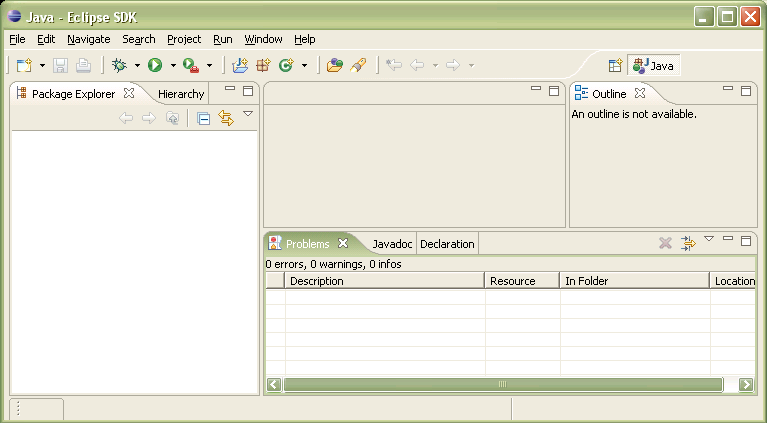
You’ll first get prompted to pick your workplace, a place to save your code. Just pick a safe place and let’s get on with it. You’ll now presented with a window that looks like this:
The boxes we’ll be dealing the most are the top middle and the bottom right (I’m not sure how use the other ones yet). “Package Explorer” and “Hierarchy” are for the more advanced users, but I kept them anyway. Each “box” (top middle, left, top right, etc.) has one or more “tabs”(Javadoc, Declaration, etc.).
Go to “New>>Project”. Make sure “Java Project” is selected and hit “Next”. Name your program (Spaces are allowed). Leave everything else as it is and hit “Finish“.
Okay, you’ve made a project. There’s more before you start coding. Go to “New”>>“Class“. The etiquette in naming classes (where it says “New”) is to capitalize every single word and to have no spaces.
Examples:The only other thing you need to change is to check “public static void main(String[] args)”. Then hit “Finish”.
You'll notice you've just created a file with the name of your class that ends with the file extension “.java”.
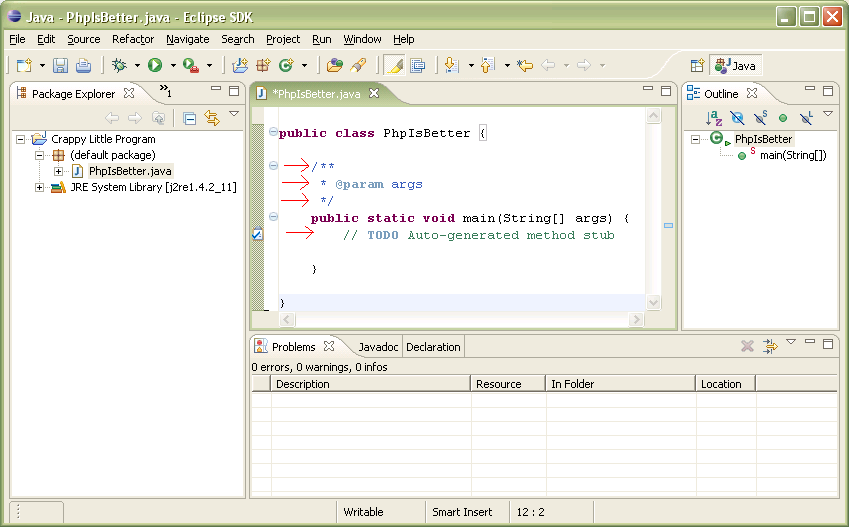
This is basically what a class is; a file that can be viewed all at once. A project can be made of multiple classes or files.
A program is nothing more than a bunch of text. See for yourself; any file ending in “.java” can be viewed with Wordpad or Notepad completely intact. The compiler goes through each individual line in order and does the tasks dictated systematically. I'll build on this later.
This color box indicates a snippet of sample code.
This color indicates a whole program.
Eclipse automatically colors text according to its role in the code. You'll notice the lines indicated by the red arrows in the picture. These are comments. They begin with the characters “/*” and “//”. These do not affect the code whatsoever. Their purpose is to communicate purpose. A thoughtful programmer would put comments saying what their code is doing to make it easier for future readers (including the programmers themselves) to understand. It is a good habit to get into. Many good programs has been lost as authors look back on them and wonder what the hell they were doing.
A “//” at the beginning of a line of code means the rest of that line of code is a single line comment. Note that Java programs do not wrap long lines to fit the window. Theoretically, these lines can go on forever.
“/*” and “*/” surround multiline comments. Everything in between “/*” and “*/” will be a comment no matter how far apart “/*” and “*/” are. They can both be on a single line or 500 lines apart. In case you're wondering, having a single line comment within a multiline comment will not cancel out the comment.
	/*This is comment.
	*This is comment.
	//This is comment.
	This is comment.
	This is comment. */
	This is not a comment.
The above is not real code. The compiler would just return an error. It's just so you can understand comments. You'll notice the line indicated by the arrow (in the screenshot) that starts with *. The asterisk has no effect on anything. Getting rid of it will not change any line's comment status.
Output is the most basic thing you'll do in any language and is almost always the first thing you'll learn. "Hello, World!!" is sort of a tradition among programmers.
Okay, now on to the good stuff. Delete all the comments along with any unneccesary line breaks (if they bother you). Below the line that says “public static void main(String[] args) {” but before the first “}”, type:
System.out.print("Hello, World!");
Note: This is the area where you'll be operating for a while to come.
Go to “Run”>>“Run As”>>“1 Java Application”. (If you didn't save, you should get a window asking you to. It'll do that everytime you try to compile without saving which is required. Best to get in the habit of hitting ctrl-S.) Hit “OK”. Now, get a sandwich or something cause Java takes forever to compile. You should end up with something like this:
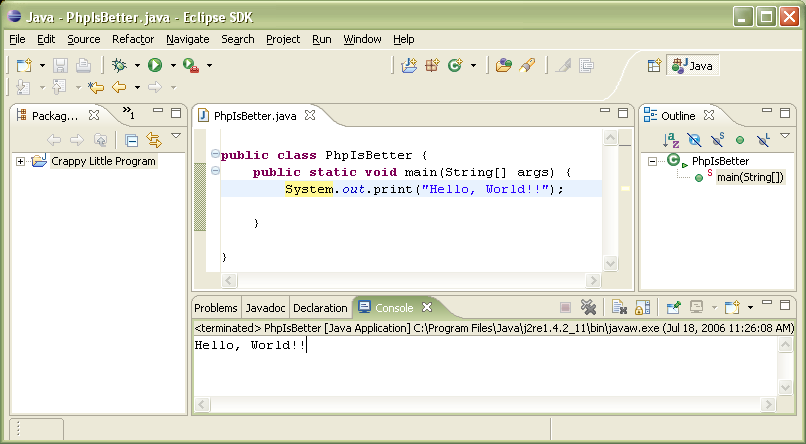
Congratulations! You just compiled your first program. A tab named “Console” has just been opened in the bottom right box. This where the fruits of your labor will appearing from now on. The way you just compiled is the sucker's way. You can assign a keyboard shortcut to make it as easy as a keystroke. Go to “Window”>>“Preferences...”. Then, go to “General”>>“Keys”. Find “Run Java Application” under “Run/Debug”. Highlight it and hit “Edit”.
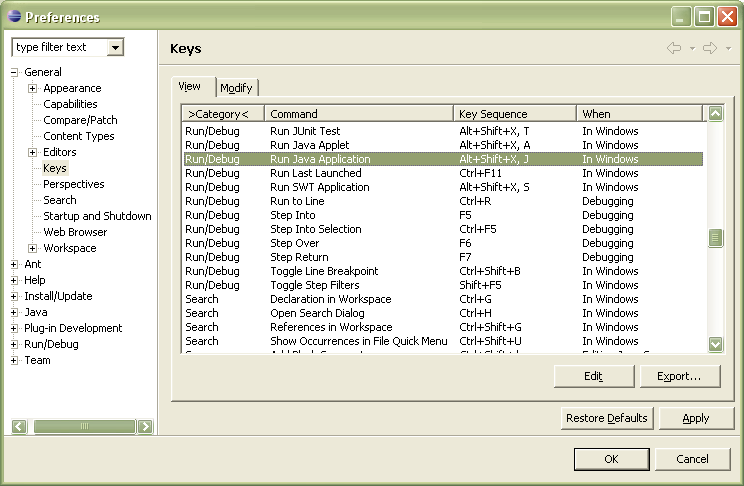
If you don't mind hitting Alt+Shift+X, then J, then leave it. Otherwise pick a key. They're all already taken but you can share or overwrite some because they're for the really advanced functions.
Suggestions: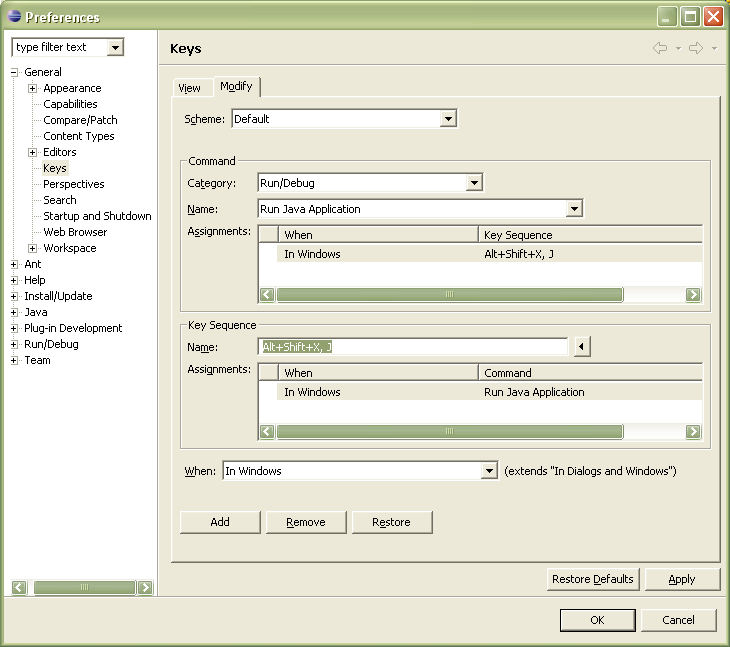
Delete Alt+Shift+X and J and type the key of your choice in the Name: textfield and hit Add, then OK.
Okay, so now you have a program that will display "Hello, World!!" to the screen. Try changing it; see what else it will display. You will see that the program will display whatever is within the quotation marks, no matter how obscene. If you put something outside the quotes, you get an error. Try having multiple lines of "System.out.print("Hello, World!");". Try to guess what "System.out.println("Hello, World!!");" does.
Highlight here to find out. >> It prints and then goes to the next line (like hitting "Enter/Return" in a word processor).If there's one thing computers do well, it's storing data. That's what that humming, spinning hard disk is screwed into your PC for. Unfortunately, Java is real bi†chy about it. You can store all sorts of data, but the data has to be put in special data types.
The one we'll be dealing with are:Assigning a value (a number, a word) to an variable name requires what type of data it is, a name for identification and the actual data, along with an equal sign. The values to be assigned are always on the right. The newly created variable is on the left, followed by a semicolon. Generally, the rules for naming variables are if they are individual throwaway names (like “x” or “y” or some other algebra descendent), then you can just leave it lower-case. If it's a multiple word name, then capitalize every individual word except the first one. Also, variable names can't start with a digit.
Examples of variable names:
Okay, so far we have:
public class PhpIsBetter {
	public static void main(String[] args) {
		int width=87; //An int with the value 87 is named width.
		double num=73.98;
		String input="I saw Jello";
	}
}
Declaring a variable means giving it a name. Initializing it means giving it a value. A variable must be declared first to be initialized.
	int x; //this is declaration
	x=12; //this is initialization
	int x=12; //this is both
Now, for you n00bs out there, you have to declare and initialize a variable before you do anything with it. If you tried to output a variable, then, on the next line, declared and initialized it, you'd get an error. Because the computer goes through the lines in order, it would think it's trying to output something that doesn't exist. The program would crash there and the variable would never be called into existence.
Now add in output. Except this time, no quotes. Variable names don't require them. Proper programming etiquette dictates that you group all the variable initializations together so you don't have a bunch of variables popping in and out of existence unchecked all over your code.
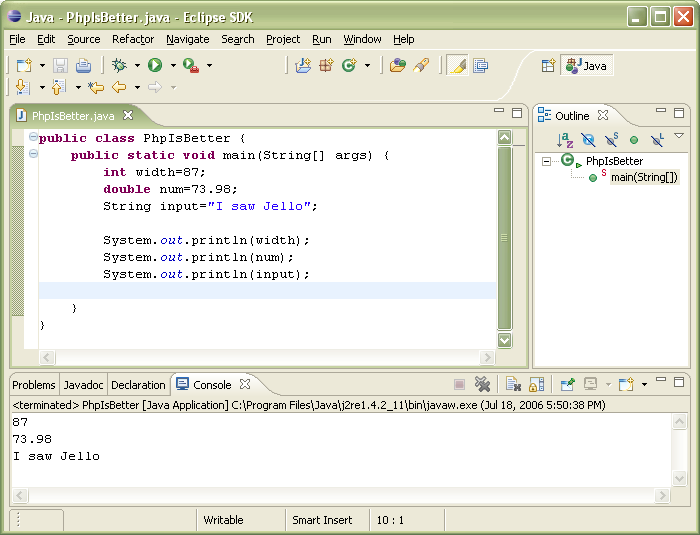
You can also assign a variable another variable's value.
	int width=87;
	System.out.println(weight);
	int height=width;
	System.out.println(height);
We can connect elements in a System.out.print with a “+”.
I must now introduce you to the first of many programming acronyms. DRY means Don't Repeat Yourself. Repeating yourself increases the size of the program and reduces efficiency. We can condense the code by putting all the output on one line. We can connect variables with a “+” (known as the "concatecation character" because it "concates" (joins together) two elements).
System.out.println(width+input+num+"Some words thrown in just for the hell of it");
But that's confusing. All the output is on one line. Well, there's another way to do it.
System.out.println(width+"\n"+input+"\n"+num+"Some \nwords thr\nown in just for the hell of it");
The “\n” is what is known as an escape character. An escape character is a backslash (the one above the enter key) followed by a character. It does stuff only if it is contained within quotation marks (or is in a String). As you can see above, even if it's lodged right up against or between another letter, it still works. There's a lot of other useful escape characters.
As you can see, you can't add in a “ or a ' or a \ without ending the String or creating an undesired escape character. You can fix this by just putting a backslash before them. \” is an escape character for ”. Same for ' and \.
What kind of programming language doesn't let you add together variable numbers? You can do this very easily with Java.
	int first=69;
	int second=42;

	System.out.println(first+second);

	int third=first+second; //adding up first and second to store in variable third

	System.out.println(third);
You can add two Strings together without much trouble resulting in a String. Try adding an int and a String and you're still good. Try all the combinations and see what works and especially what data type the resultant will be, in case you ever need to store it in a third variable.
Of course, you can add numbers.
int sum=2401+343;
You've probably noticed that every line you've typed so far ends in a semicolon. There's a reason for this, a important reason for this. Somewhere in the Sun Microsystems lobby, there's a sculpture of a semicolon (well, there should be), it's that important. It ends the line. 90% of the time, an error in your program is a missing semicolon.
Now you might say, “I thought the line breaks ended the line.” Well, you'd be wrong. In fact, try taking all the line breaks out of your program. One single long superline, as long as there are no other errors, will function the same as if it had line breaks. It is the semicolon that makes this possible. The reason for the line breaks are to make the code easier to read, a quality of substantial importance. This is also the reason for the indenting. Observe below.
public class PhpIsBetter {
^	public static void main(String[] args) {
|	^
|	|	String space="I think this line is filler.";
|	|
|	v 	System.out.println(space);
v	}
}
The first line ends with a “{” and the last line ends with a “}”. Everything contained in between is contained in the class PhpIsBetter, defined by the braces ({}). Everything inside that class in indented. If there was another class within the file (there should never be!!), it would be not tabbed over at all (right smack dab next to the left side of the frame. Likewise, everything contained between public static void main(String[] args) { and the second-to-last } is contained within the method main. Therefore, everything inside is indented.
The arrows indicate how the first and last lines of a segment should be positioned. Alternately, you can have this other positioning:
public class PhpIsBetter
{
^	public static void main(String[] args)
|	{
|	^
|	|	String space="I think this line is filler.";
|	|
|	v 	System.out.println(space);
v	}
}
Like I said before, line breaks don't make a difference.
Like many functions from now on, input will be facilitated using prewritten code in the SDK. First, at the very top (outside the class) type “import javax.swing.JOptionPane;”.
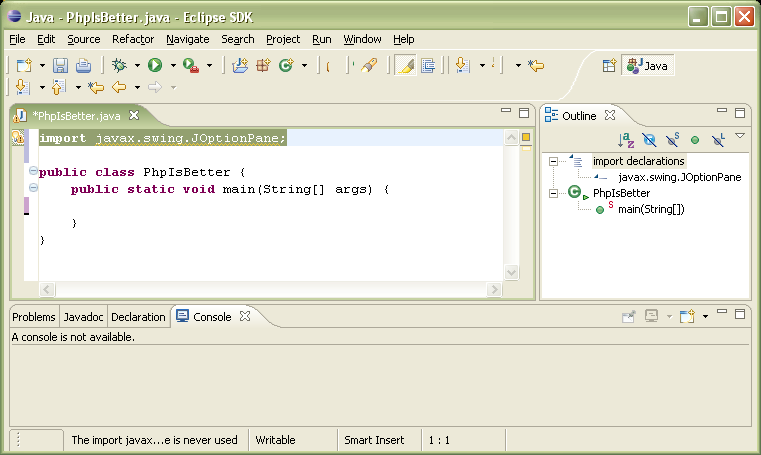
You'll notice your project size gets significantly larger after this. That's because there's a bunch of code now at your fingertips. You can automatically get input by typing this line:
JOptionPane.showInputDialog("Enter your input");
Compile. You'll see that “Enter your input” will appear in a window entitled “Input” with a textbox. Type whatever you want and hit “OK” the window will exit and&hellip? Nothing. Nothing happens because you didn't tell your program to do anything other than input. That line you just used created a String of whatever you typed what was -pooft- thrown away, lost in the void of 1s and 0s. Capturing the String is easy:
String input=JOptionPane.showInputDialog("What would you like to output?");
Whatever you entered will be put in String input. Just output input with a System.out.print.
	String input=JOptionPane.showInputDialog("What would you like to output?");
	System.out.println(input);
As expected with a String, you can output anything you want. Including numbers. But the numbers are part of a String. They get treated like letters. Therefore, you can't, like, add them or nothing or divide them either. You can however “parse” them, turn them into numbers.
String input=JOptionPane.showInputDialog("You enter a number now, eh?");
int parsedString=Integer.parseInt(input);
Now, parsed is a int. See for yourself. Try to add it to other stuff. If you add it to a String, you get a weird-ass String (“i'm a string56” or something). If you add it to an int, you get the sum of the two ints. Just make sure you don't end up trying to parse, like, a letter or something. Then, your program will crash.
It's also worth noting that you can combine the two together.
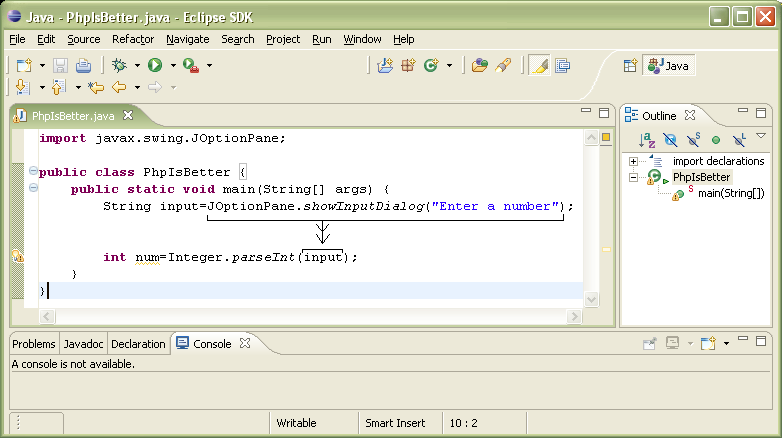
int parsed=Integer.parseInt(JOptionPane.showInputDialog("You enter a number now, eh?"));
Now this opens up a world of opportunity for you. Programs will actually begin to get useful. Your homework is to create a program that will ask for two numbers and add them and output the sum. And...go!
Below is the code for the homework. Highlight to view (but don't cheat yourself out of an education).
import javax.swing.JOptionPane;

public class PhpIsBetter {
	public static void main(String[] args) {
		int num1=Integer.parseInt(JOptionPane.showInputDialog("What's the first number?"));
		int num2=Integer.parseInt(JOptionPane.showInputDialog("What's the second number?"));

		//Let's add them together!!
		System.out.println("The sum of "+num1+" and "+num2+" is "+(num1+num2));
						/* The parentheses are needed around the num1 and num2 because
						that's how the ints are added. Otherwise it would have treated
						the ints like Strings and put them next to each other. This way,
						it knows to add them first.
						*/
	}
}
Okay, so, if you can, find a TI-83 or some other graphing calculator. On the 83 at least, there's a “TEST” menu. Use it to type in a statement like:
8>4
You get zero, right? You should. The statement is false. Now, type:
7=7
You get one because it's true. You're calculator is a miniature computer and is telling you true or false with 1 for true and 0 for false. These are boolean statements. The only difference between the calculator and is that the computer displays a “TRUE” or “FALSE”. Go ahead and see for yourself.
System.out.println(5=6);
Of course, everything needs a contingincy plan.
Tommy: Computer, if the CIA gets wise. Blame everything on Schmitz.
Computer: Acknowledged.
If only computers understood English. Unfortunately, they do understand Java. So here you go.
	if(TRUE OR FALSE){
		THIS CODE IS
		EXECUTED
		IF THE BOOLEAN
		IN THE
		PARENTHESES
		IS TRUE
	}
The only parts you'll change are in capital letters. Where it says "TRUE OR FALSE", you'll put your boolean statement (see code snippet #1), which the computer will immediately turn into either “TRUE” or “FALSE”. It's worth noting that you can cut out the middleman altogether and put in place of the boolean either “TRUE” (or “FALSE”) if you want the loop to run (or not to run) everytime (see code snippet #2).
	if(6<8){
		System.out.println("If you can read this, you can read.");
	}
	if(TRUE){
		System.out.println("No matter what happens, this text will be displayed.");
	}
	if(FALSE){
		System.out.println("This text will NEVER be displayed.");
	}
The real usefulness of if loops becomes evident when you realize you can put variables in the boolean statements. This way, you can make sure nothing bad happens if something goes wrong.
	if(budgetdeficit>400000000000){
		System.out.print("Goddammit, Bush!");
		military_budget=military_budget-600000000;
	}
Methods are exceedingly useful. It's like having a seperate little program within your program. And we all know programs make things easier. Am I right?
Anyway, the point of a method is to perform an action. You've been working in a method all along: main. Now, you'll create your own. You'll see the usefulness of methods when your programs get more complicated.